It’s registration week. You open your laptop, type in your details, and the Wits University login page stares back at you with an error message. Sound familiar? You are far from alone. Every year, many new and returning students get stuck at this exact step. The good news is that most Wits login problems have simple fixes. This guide walks you through each login point, the usual errors, and what to do when nothing works.
What does “Wits University login” actually mean?
There is no single Wits login page. Wits uses a few connected systems, and which one you need depends on what you want to do:
- Student Self-Service: for registration, fees, academic records and personal details.
- Ulwazi: the online learning platform for lecture material, assignments and grades.
- Student email: your official channel for communication from the university.
- MyWits: the hub that links you to most student services.
Your student number and Wits password open most of these. That is why one forgotten password can lock you out of several systems at once.
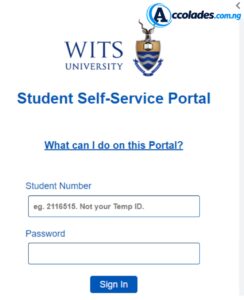
How to log in to the Wits Student Self-Service portal
- Go to self-service.wits.ac.za.
- Enter your student number (the number on your acceptance or acknowledgement email).
- Type your password. First-time users are normally given initial details by the university, so check your application emails carefully.
- Click login and wait for the dashboard to load.
Type the address carefully, with the hyphen. Many students end up on the wrong page because of a small typing slip.
Logging in to Ulwazi
Ulwazi is where your courses live. Open ulwazi.wits.ac.za and sign in with your Wits credentials. Your username is usually your student number followed by the Wits email domain, and your password is the same one you use for your Wits email. If Ulwazi refuses your details but Self-Service accepts them, check the format of your username before assuming something is broken.
Ulwazi runs on Canvas, so you can also use the Canvas Student app on your phone for quick access to your courses.
Your Wits student email
Your official email address follows the pattern studentnumber@students.wits.ac.za. Wits sends fee statements, registration updates and academic notices here, not to your personal Gmail. Missing that mail is one of the costliest mistakes a student can make, so check it regularly, especially during registration and exam seasons.
I forgot my password. What now?
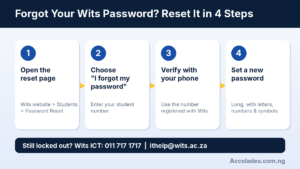
Wits has a self-service reset route, and it works well if you set it up early. The usual path is:
- Visit the Wits website and go to Students, then Password Reset, then Current Students. You can also use the official reset page at wits.ac.za/mywits/password-reset.
- Choose “I forgot my password”.
- Verify yourself with the phone number registered for authentication.
- Enter a new password and finish.
Wits requires a password of at least 16 characters, so mix uppercase and lowercase letters, numbers and symbols, and write it down somewhere safe. If the verification code never arrives, it usually means your phone was never registered for authentication. In that case you need to speak to the Wits ICT Service Desk directly.
Common Wits login problems and quick fixes
“Invalid username or password.” Re-check your student number for typos, and make sure Caps Lock is off. Then try the reset page instead of guessing repeatedly, because too many wrong attempts can lock your account.
The verification code doesn’t arrive. Your number may not be registered. Contact ICT to update it.
The page won’t load. Clear your browser cache or try another browser. Peak periods such as registration and exam results can slow the system, so try again at off-peak hours.
Works on one site but not another. This is often a username format issue. Ulwazi and Self-Service can expect slightly different formats.
Locked account. Use the unlock option in the password reset system, or call ICT.
Who to contact at Wits ICT
When self-help fails, go to the source. The Wits ICT Service Desk handles password resets, account unlocks and device registration. You can email itstudenthelp@wits.ac.za or call 011 717 1717. You can also find more help on the MyWits page on the official Wits website. Always include your student number and a short description of the error, and attach a screenshot if you can.

Tips to avoid getting locked out again
- Register your phone for password self-service as soon as you receive your credentials.
- Don’t share your password with classmates, even friends.
- Save your student number somewhere you can always find it.
- Log in early, well before registration or assignment deadlines.
- Check your Wits email every day during term.
Not yet a Wits student? Start here
If you are still preparing to apply, your login is the least of your worries. Admission starts with strong results and, for many programmes, a good National Benchmark Test (NBT) score. For past papers and preparation material, take a look at what we offer on Accolades.com.ng, and see our JAMB past questions page if you are also writing exams back home. Applying early and preparing well gives you a real advantage.
Final thoughts
Most Wits login trouble comes down to three things: a typo in the student number, an old or forgotten password, or an unregistered phone number. Fix those, and you are back in within minutes. Keep the ICT Service Desk contacts handy, and don’t wait until a deadline is hours away before you test your login.
Still stuck? Message us on WhatsApp via +2348120431479 and we will point you in the right direction.
– Accolade